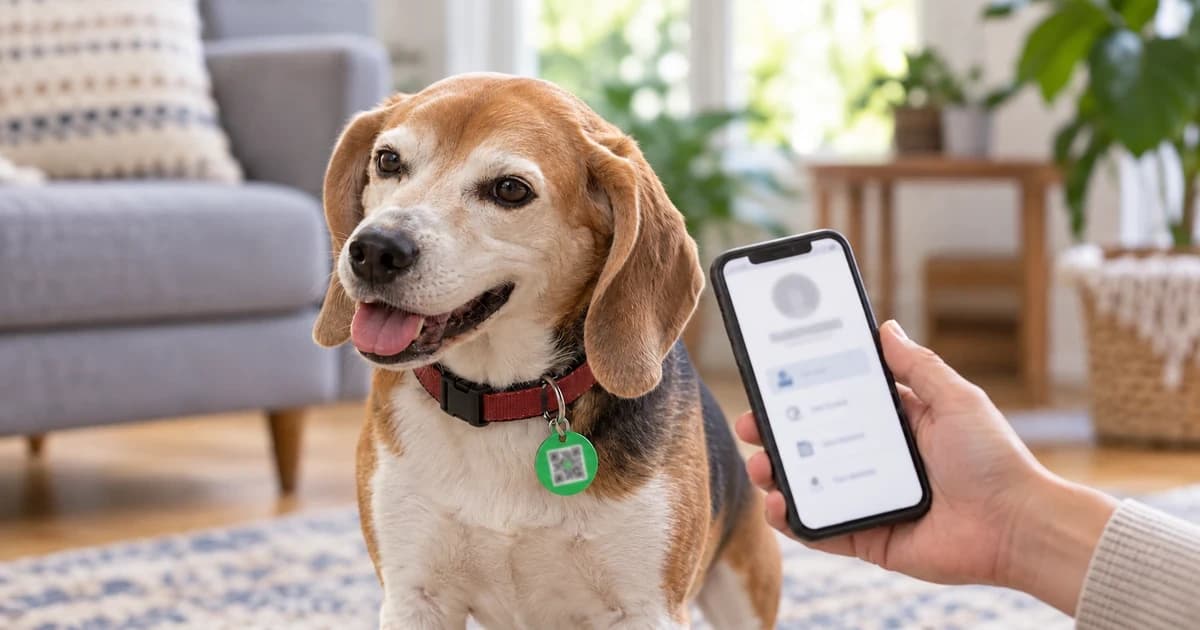
To activate a QR pet ID tag, use the issuing service’s instructions to link the tag to the correct pet profile, choose the contact information a finder may see, and confirm the setup. Then scan the physical tag and inspect the resulting public page. An activation message does not by itself show that the right pet or the intended contact fields are visible.
The important checks are the tag-to-pet link, the finder’s contact route and the information disclosed. Services differ in their screens, defaults and fields that cannot be hidden. This guide compares documented PetHub and Ask A Vet examples; it does not identify an unverified tag as either service or report a live account test.
Identify the tag’s service before creating a profile
Keep the packaging or setup card with the tag. Look for the issuer, its official support address and any printed web address. Open that service’s documented setup route rather than entering personal information into an unrelated page found by a general search. If the code opens an unexpected destination, stop and ask the issuer to identify it before submitting account or contact details.
Write down which physical tag belongs to which pet. The PetHub FAQ describes creating a pet profile and linking one or more PetHub tags or collars to it. That is a relationship to establish, not something to infer from the tag’s color or an existing pet photo.
A QR contact tag also needs to be distinguished from a location tracker. PetHub describes a passive scan-location feature that depends on a person scanning the tag and permission to obtain that phone’s location. It does not continuously locate the pet. Notifications, mapping, account tiers and hotline access require the exact service’s current terms; this guide makes no universal tracking or recovery promise.
Link the correct pet, then confirm the privacy choices
The Ask A Vet activation guide documents this flow for its own app:
- Open its QR-tag activation screen and scan the new tag, allowing camera access if requested.
- Select the pet that will wear the tag. The documented flow skips this selection when activation starts from a pet’s profile.
- Review the tag’s public-information choices. The help page says a new tag starts with email enabled and the other toggles disabled.
- Confirm, then follow the success screen’s instruction to scan the tag and check the displayed pet page.
Those are documented Ask A Vet steps, rather than a universal menu path. The help page limits activation to the owner or a family member with permission to edit that pet. Other issuers may use a website or different app controls.
Read a partial-success message carefully. Ask A Vet specifically distinguishes a tag that was linked successfully from privacy settings that failed to save. In that documented case, confirming again re-saves the choices; it does not create another pet link. Check the service’s own error guidance before repeating an entire setup or assigning the tag to a second profile.
Check what the service permits you to hide
A contact profile can contain more information than you intend to make public. Choose the finder’s contact route deliberately, then check both optional fields and details that the service always displays.
| Service example | Documented public information | What to check on your own tag |
|---|---|---|
| PetHub | Its privacy article describes a fully private setting showing the pet’s name, photo and PetHub hotline, while owner phone, email and address remain hidden | Confirm the intended setting and that this tag actually supplies the stated hotline/contact route |
| Ask A Vet | Its help page says the owner’s name and pet’s name/photo always appear; phone, email, address and other categories have separate controls | Review unavoidable identity fields as well as each chosen toggle; do not interpret all toggles off as an anonymous page |
These examples come from PetHub’s QR privacy article and Ask A Vet’s public-information guide. They describe their own services. They do not establish that every QR tag has a hotline, can hide the owner’s name or uses the same initial defaults.
Ask A Vet also documents settings separately for each tag. On an already active tag, changes save as the toggles are used, and a save error needs attention. A second tag linked to the same pet can have different public choices. Inspect each physical tag rather than assuming an account-wide change covered them all.
Inspect the actual finder page
After setup, scan the physical code with the phone’s ordinary camera and inspect the page it opens. When practical, check it while signed out of the service, or on another device that is not signed in, so the owner’s editing view is not confused with what a finder sees. This is a practical visibility check, not a security audit or proof of the service’s internal data handling.
- Pet identity: check the name and photo against the pet that will wear this tag.
- Contact route: check the displayed phone, email, form or service contact option you intended to provide. Inspect the destination before using a link.
- Disclosure: look for owner name, address, secondary contacts, location links and free-text fields. Remove optional information you do not intend to share, using that service’s controls.
- Saved state: revisit the finder page after a change to confirm the displayed result, rather than relying solely on the position of a toggle.
Do not put real contact details, a working tag ID or an account screenshot into a public demonstration or review request. A blurred or fictional illustration can explain the check without publishing the very details you are deciding whether to expose.
If everything is hidden, check what contact method remains. PetHub’s privacy-controls guide describes a hotline that can bridge contact without making unpublished owner details visible to the finder. That is a named service feature, not a capability established for a blank or unidentified QR tag.
Keep a setup record and recheck changes
Record the setup date, issuer, pet linked to each tag, intended public fields, contact route and whether you inspected the finder page. Keep the actual tag identifier in your private record.
Revisit the profile when your contact information changes, a tag is replaced or another person takes over account management. PetHub’s FAQ describes editing profile information and linking a replacement tag; another service’s transfer or replacement process may differ. A readable physical code and a current profile both need checking.
When browsing digital ID tags, identify the service behind the item and read its setup and visibility instructions. A category listing does not establish current service availability, account features or compatibility.