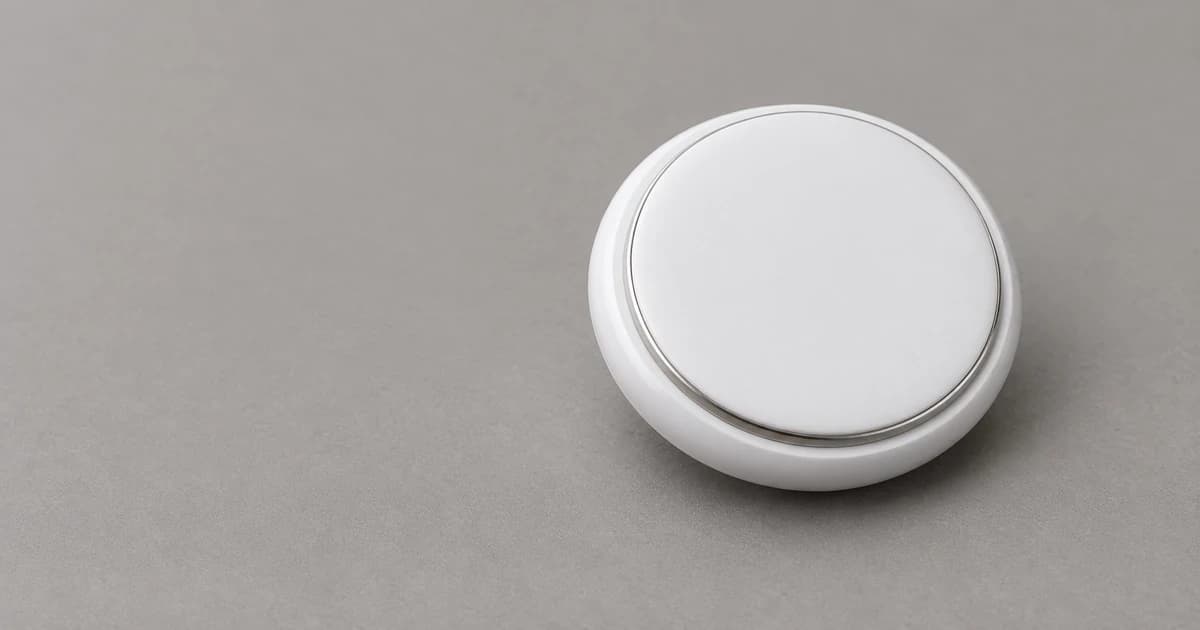
When pet owners ask are AirTags good for cats, the documented answer in Apple's manuals covers how the Find My network reports a tagged object's location—not whether an item finder is safe or effective for tracking a moving animal. A map pin in the Find My app shows where and when a nearby Apple device detected the AirTag's Bluetooth signal, or whether the tag is currently within range of your own iPhone. That report never proves where the cat is right now or confirms that the tag is still attached to the collar.
Apple designs and documents AirTag for personal items such as keys and bags. Whether a cat should wear an external tag or collar holder requires separate animal-safety and breakaway-collar evaluation outside Apple's documentation.
How the Find My reporting path and nearby branch work
Apple's AirTag overview explains that an AirTag emits a Bluetooth signal that nearby devices in the Find My network can detect and relay through iCloud to the owner's Find My app. That network relay path is completely separate from direct, short-range connection between the AirTag and your own iPhone:
Unlike a dedicated cellular unit—which our cellular GPS pet-tracker explanation breaks down into satellite positioning plus mobile data transmission—an AirTag relies on passing Find My network devices when out of your phone's range. Apple's documentation does not guarantee a refresh interval or coverage radius for a moving animal.
Separate network relay reports, timestamps, and nearby finding
Before interpreting any Find My screen, distinguish three separate pieces of information: a network-relayed map coordinate shows where a passing device detected the tag, the timestamp shows when that detection happened (or when the tag was last located if currently unreachable), and nearby Precision Finding requires your own compatible iPhone to establish a direct local connection with the tag. Each function has specific Apple source conditions and hardware limits:
| Find My feature & Apple source | What to check on your device | Reporting limit to keep visible |
|---|---|---|
| Located or last-known map point (iPhone User Guide: Locate an item in Find My) | Read the timestamp alongside the place name; check whether the position is updating now or showing where and when it was last located. | A last-known timestamp records where the AirTag was at that moment; a moving cat may have left the area, or the collar/tag may have detached. |
| Nearby Precision Finding (Apple Support 109021: Use AirTag and Find My) | Confirm your iPhone model and iOS version support Precision Finding for your exact AirTag generation and that you are within local range. | Seeing a remote map pin does not mean your phone has a local Precision Finding connection; walls and objects between phone and tag reduce range. |
| Playing a sound & web access limit (Apple Support 109021) | Use the Find My app on a supported Apple device; check whether the sound control is active within Bluetooth range. | Playing a sound requires local connection, and Apple states that AirTag locations are not displayed at icloud.com/find. |
Check hardware generation and holder boundaries
Always verify the specifications for the exact AirTag generation and iPhone model you own, as Ultra Wideband and Precision Finding compatibility depend on hardware generation, country or region, and iOS version. In addition, browsing tracker holders and mounts only shows ways to house a round tag—a silicone sleeve or collar mount does not turn an item finder into a tested cat-safety collar or verify breakaway release under load.
Log what the app actually displays
Use this five-row checklist to interpret a Find My screen accurately without conflating a historical timestamp with a live sighting:
| Record field | Your observation note |
|---|---|
| Exact equipment | AirTag generation, iPhone model, and iOS version in use: ____ |
| App report & timestamp | Displayed map address/point and the exact timestamp attached to it: ____ |
| Report status | Currently updating via Find My network vs. last-known location report: ____ |
| Nearby connection state | Whether local sound or Precision Finding connects at the reported spot: ____ |
| Hardware & holder boundary | Hardware generation, software requirement, or collar-holder specification still to verify: ____ |
Keep reporting limits and permanent ID separate
The exact same reporting rules apply if someone asks can you use an AirTag to track a dog: changing the pet species does not turn a last-known Find My timestamp into continuous live GPS tracking or establish animal attachment safety. Finally, remember that an external tag is never a substitute for permanent registry identification; see our microchip identification versus location-tracking guide for how implanted microchips and external locators differ.