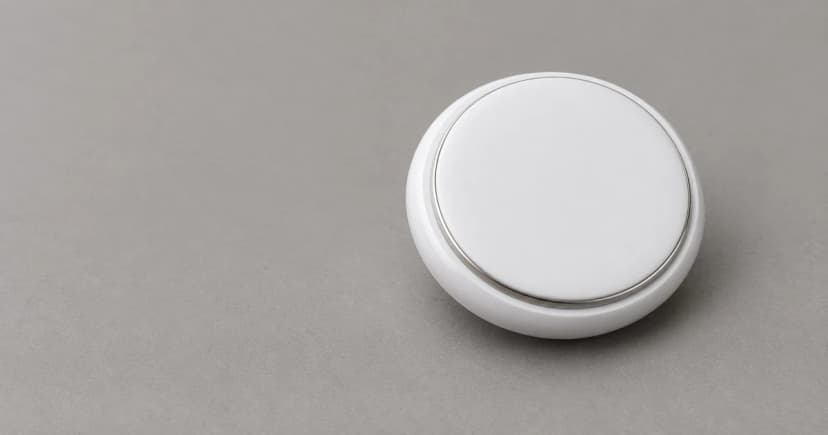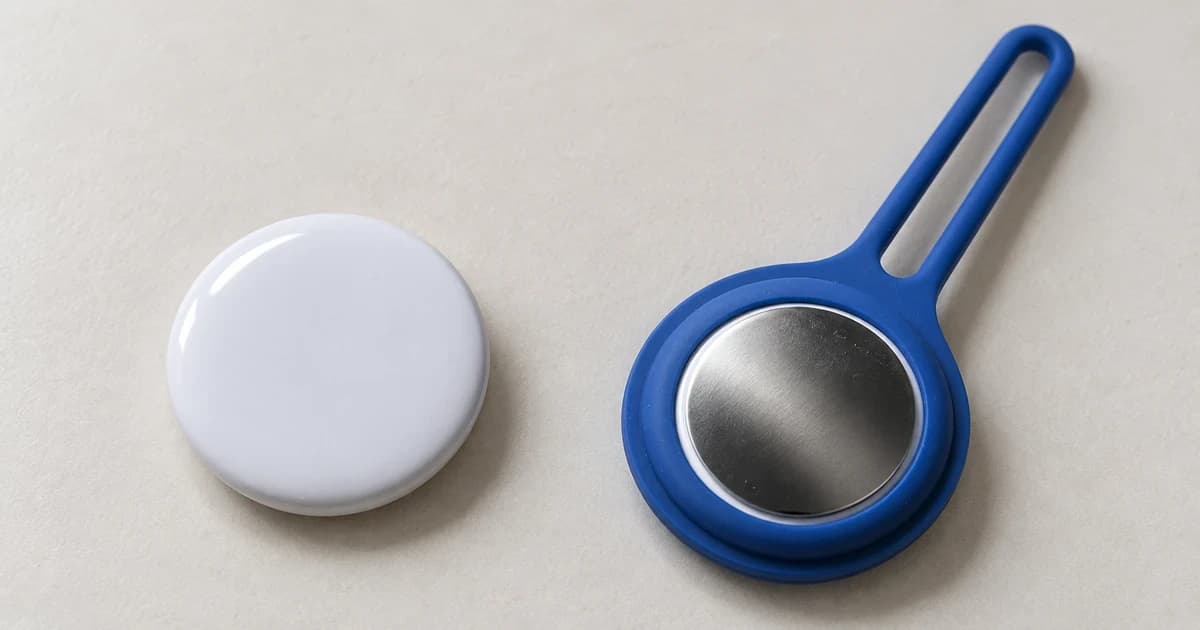
An AirTag does not have one distance that explains every Find My feature. Nearby finding depends on a connection close to the tag. A remote map update uses the Find My network to report an approximate location. Being far from your own phone does not automatically prevent a report, and being shown on the map does not establish that the item is still there.
For a misplaced set of keys or backpack, start by deciding which question you are asking: "Can my phone connect here?" or "Has the network reported the item somewhere else?" Those are different checks.
Two ways of finding an item
| What you are checking | What the information means | What it does not establish |
|---|---|---|
| Nearby sound or Precision Finding | A nearby connection can help locate the tag; compatible Precision Finding provides distance and direction. | A fixed working distance through every wall or with every phone. |
| A location reported on the map | The network has information about an approximate location. | Continuous updates, an exact position now, or a direct connection to your distant phone. |
Apple describes nearby Bluetooth finding and Ultra Wideband connectivity separately from the crowdsourced network that detects accessories and reports their approximate locations. These functions should not be combined into a single "range" number. See Apple's second-generation technical specifications and Find My location guide.
Nearby finding: conditions matter more than a universal distance
When you are near the item, Find My can offer sound and, with compatible equipment, Precision Finding. Apple's current instructions say that walls and objects between the phone and tag can affect performance. A connection available in one room may therefore be unavailable in another setting. None of the four official pages used for this guide supplies a universal feet-or-meters limit for every situation.
If Find Nearby is unavailable, check device eligibility and location access before deciding that the tag is too far away. Apple also identifies being out of range as a possible reason. Use the available map information to approach the item, then try nearby finding when within range. Follow the app's distance and direction guidance once a connection is established. These steps come from Apple's AirTag finding instructions; they do not guarantee a connection at a particular distance.
Remote updates depend on network detection
The Find My network uses Bluetooth detection by other Apple devices to report an accessory's approximate location to its owner. That is why the distance between the AirTag and your own phone is not the only factor in a remote update. The relevant question is whether the network has detected and reported the item.
If no fresh information is available, a displayed last-known position is evidence of an earlier report. Check any time or freshness information the app shows before treating a pin as current. A stale pin does not confirm that the item has remained in place, and missing information does not tell you a measured distance from the tag. These are practical limits of interpreting the network and last-known-location information Apple describes, rather than a promised update schedule.
Check the generation and the feature you want
Adding a tag to Find My and using Precision Finding have different requirements. Apple's current setup page lists iOS or iPadOS 14.5 or later for the original AirTag, and 26.2.1 or later for the second generation. A phone meeting a setup requirement is not automatically eligible for every nearby feature. Check the current setup instructions for your tag.
For expanded Precision Finding with the second generation, Apple's specifications identify iPhone Air or iPhone 15 and later, excluding iPhone 16e and iPhone 17e, with regional availability conditions. The same specifications list iOS 26.0 under general system requirements, while the current setup and finding pages specify 26.2.1. Use the task-specific setup instructions when adding that generation rather than relying on the general OS line alone. Check the model-specific specifications and footnotes before assuming compatibility.
Run an item-finding check you can interpret
- Confirm which AirTag generation and phone you have, and check their current requirements.
- Before testing with your own keys or backpack, check Bluetooth, Location Services, Find My location access and the network settings described in Apple's setup troubleshooting guide.
- Separate the observations: record whether a map report appears, whether sound is available nearby, and whether Precision Finding connects.
- Note the setting and any displayed freshness information. A successful check describes that occasion; it does not establish coverage or update frequency elsewhere.
Apple documents AirTag for personal items. This guide does not extend those functions into a pet-tracking or recovery guarantee. A tracker holder or mount is a physical accessory; choosing one does not establish radio range or tracking results. Decide what information you need from the app before treating any distance claim as useful.