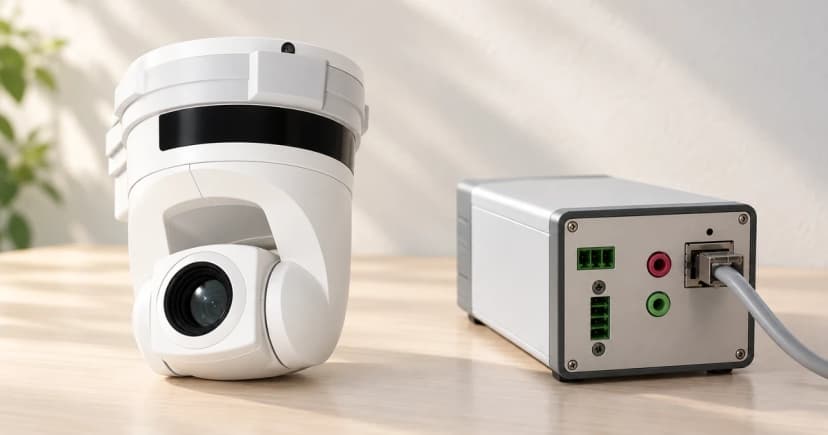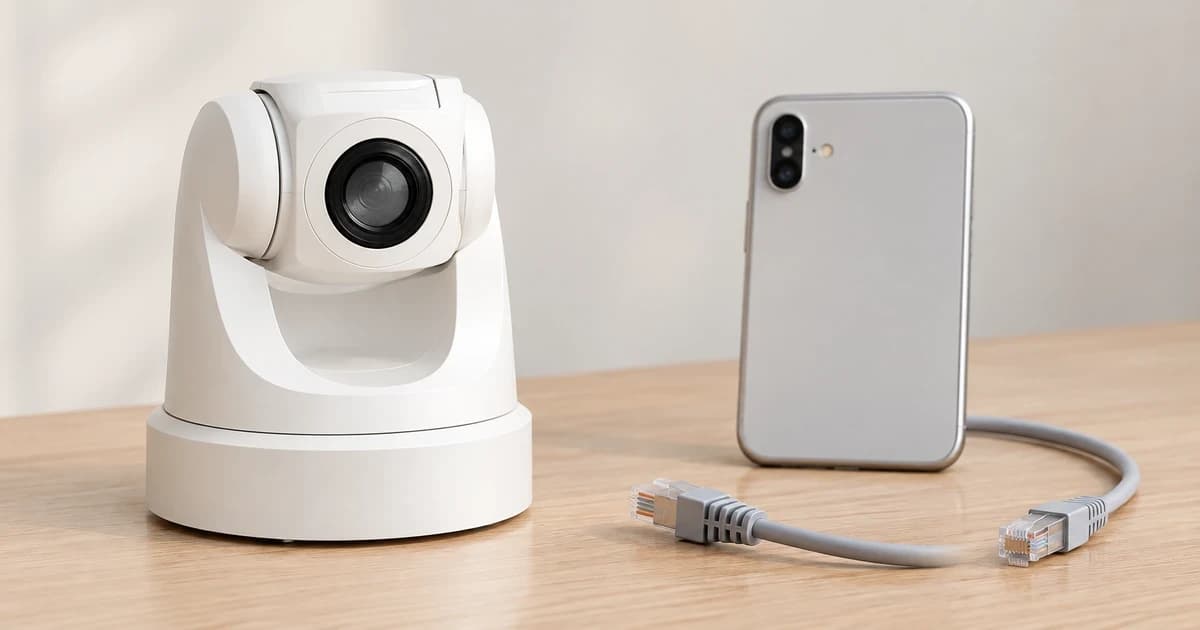
Set up a pet camera by identifying its exact model, connecting it through that model's supported network and app flow, choosing a stable view, and checking who can watch or control it. An online camera is not proof of private access. Wi-Fi credentials, the camera's owner account and invitations to other viewers are separate parts of the setup.
Petcube Cam 360 and the fixed Furbo Dog Camera illustrate why the model comes first: both cited guides describe 2.4 GHz Wi-Fi, but their pairing methods differ. Their instructions do not establish the requirements of every pet camera or confirm the specifications of a similarly named store listing.
Identify the camera before following a setup sequence
Read the label and the supplied instructions, then select that device in its official app. Keep its specified power adapter and cable information available. Do not choose a model merely because a product name contains “360”, “Wi-Fi” or “pet camera”. Those words do not identify the manufacturer's setup flow.
The pet camera category can help organize a comparison, but exact hardware, supported bands, app permissions and inventory need individual confirmation. A catalog title is not evidence that a particular Petcube or Furbo manual applies.
Separate the credentials you are being asked for
| Setup item | Its role | Check before entering it |
|---|---|---|
| Home Wi-Fi name and password | Connect the camera to the intended network. | Supported band, correct network name and the network's password. |
| Camera service account | Register the device and manage it through the service. | Official app or service, intended owner and a unique account password. |
| Viewer invitation or sharing setting | Give another person the access the system offers. | Actual privileges, enabled users and how to remove access. |
Giving someone the Wi-Fi password does not substitute for understanding camera permissions. Conversely, a service invitation need not mean transferring the device's registration. Keep passwords and generated pairing information out of shared screenshots or a public setup record.
Use the named model's pairing method
The Petcube Cam 360 user guide specifies a password-protected 2.4 GHz network. Its illustrated iOS setup has you sign in, choose Cam 360, enter the network password and present the app-generated QR code to the camera. The guide specifies a five-inch distance for that QR step. These are Cam 360 instructions, not a general QR procedure for all cameras.
The fixed Furbo setup page instead describes enabling the phone's Bluetooth, waiting for that device's green setup indicator, choosing the device in the app and selecting compatible 2.4 GHz Wi-Fi. It then has you name the camera. This Canadian English page is tagged for the fixed, non-rotating model; do not carry its green-light instruction over to another Furbo model.
Follow one matching sequence rather than combining a light color from one device with a button or QR step from another. If the displayed device, prompt or indicator differs, pause and check the current instructions for the exact model and app version.
Resolve connection problems without weakening the network
Start with the intended network name, supported band, entered password and the camera's specified power arrangement. Keep a private note of the error message and the stage at which it occurs. A camera that has not paired, a paired device shown offline and an owner who cannot sign in are different problems.
Do not treat turning off a firewall, opening router ports or borrowing another model's reset sequence as a routine requirement of installing a pet camera.
The Federal Trade Commission's camera security guidance recommends an updated router with its firewall enabled and an encrypted wireless network. A successful connection should not be obtained by abandoning those protections.
Choose a stable placement and check the actual view
For Cam 360 specifically, Petcube recommends a flat table or shelf position at least three feet above the floor, with placement toward the edge for a better viewing angle. That is a named-model recommendation, not a universal mounting height or permission to balance any camera on a narrow edge.
Use the camera's own placement and handling instructions to check the surface, power cable and surroundings. Petcube's handling section warns against pinching or walking on the cable and exposure to moisture, excessive heat or direct sun. Keep the device and cord arrangement appropriate to the actual room and animals.
Then inspect the view in the app: what ordinary pet area is visible, what is outside the frame, and whether the lens includes private household areas you did not intend to share. Recheck after moving the device. A desirable still view does not prove uninterrupted coverage, reliable alerts or that the camera can replace in-person care.
Check access separately from the live picture
Petcube's guide distinguishes one account registering the device from sharing access with other users. Its sharing screens also show ways to remove users. Use that distinction when setting up the actual app, but check the privileges it currently presents rather than assuming that a role name has the same powers across models or versions.
The FTC recommends considering different permission levels and checking who can watch, when they can watch and who can change settings. Invite only the intended people through supported controls, inspect the resulting list and verify the access that each enabled role actually receives. If access is temporary, use the supported removal process and check again afterward.
The FTC also recommends strong passwords that have not been used elsewhere, updated camera software and viewing apps, and two-factor authentication for the cloud account when available. Investigate encryption and remote-viewing controls in the exact manufacturer's information. These checks do not establish that every camera offers those features, or guarantee that a connected feed cannot be compromised.
Keep a useful setup record without storing secrets
- Exact model and the matching setup guide.
- Supported network band and completion status, without recording the password.
- Placement and the areas visible or deliberately excluded.
- Owner account identity, enabled viewers and the date access was checked.
- Update and security options actually found, including anything still unknown.
Pawlivy's editorial policy explains the source-based approach; the exact device and current controls remain the basis for setup decisions.