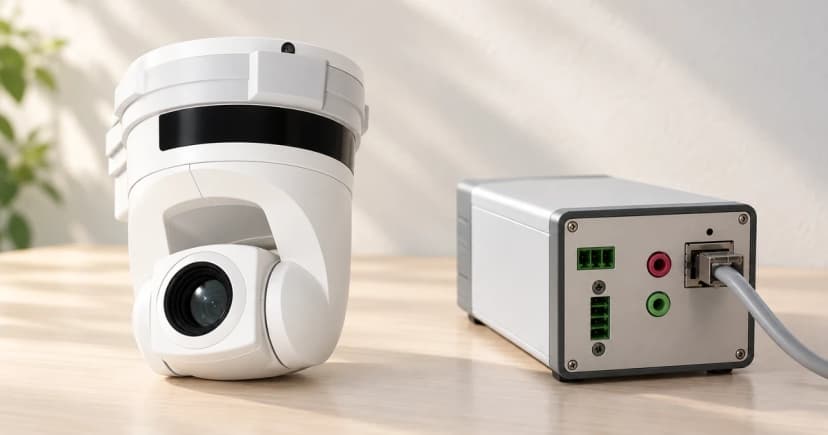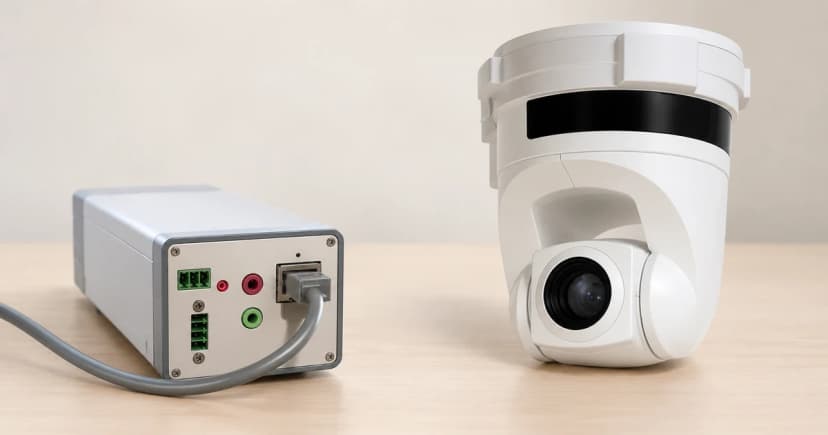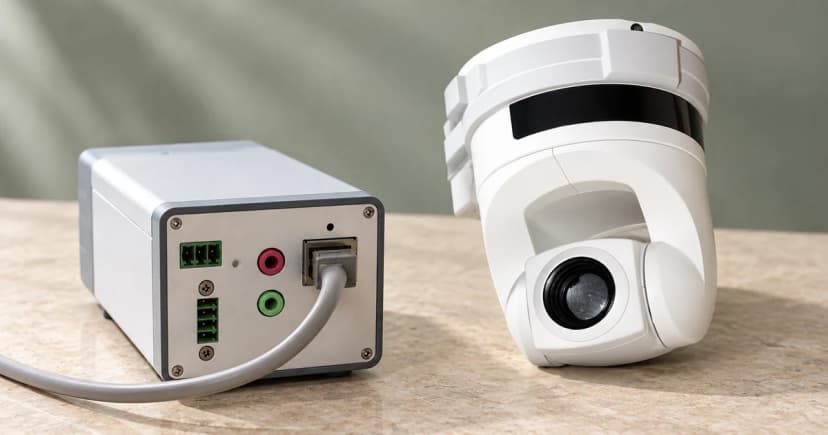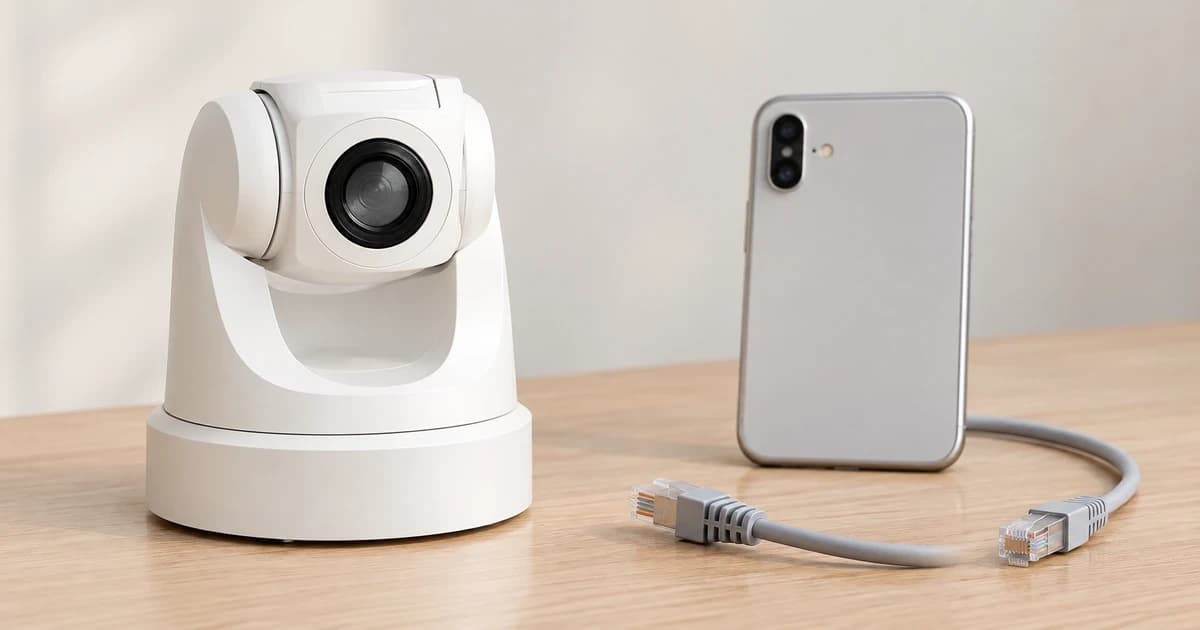
To set up a pet camera's Wi-Fi, view, and account access, identify the exact hardware model first, follow that model's official app pairing sequence on its supported network band, position the lens on a stable surface framed only on the intended pet area, and audit every person who can view or control the feed. Seeing a live video stream on your phone does not prove that access is private: home Wi-Fi credentials, the primary camera-owner account, and shared viewer invitations are three separate security layers.
Published guides for the Petcube Cam 360 and the fixed Furbo Dog Camera show why model identification comes first: both require a 2.4 GHz Wi-Fi network in their cited instructions, yet Petcube Cam 360 pairs by scanning an in-app QR code held five inches from the lens while the fixed Furbo pairs via phone Bluetooth when its status light turns green. Neither procedure is a universal rule for every camera sold online.
Identify the exact camera model before starting app setup
Check the model number printed on the base or label of the camera and select that exact model inside the brand's official app, keeping the supplied power adapter and cord together. Never pick a setup flow based solely on generic words like “360,” “Wi-Fi,” or “treat camera.” When comparing devices in Pawlivy's pet camera category, verify each model's own manual for supported Wi-Fi bands, app permissions, and mounting rules.
Separate the three credentials involved in setup
| Setup Layer | What It Controls | What to Verify Before Entering It |
|---|---|---|
| 1. Home Wi-Fi SSID & password | Connects the camera hardware to your home router. | Confirm router encryption (WPA2/WPA3), firewall enabled, and the camera's supported frequency band (e.g., 2.4 GHz). |
| 2. Primary camera service account | Registers device ownership and manages cloud settings, firmware, and sharing. | Use the official app, a strong unique password not reused elsewhere, and two-factor authentication (2FA) where supported. |
| 3. Shared viewer invitation | Grants another person (family member or pet sitter) access through the app. | Check which exact controls (live view, two-way audio, pan/tilt, or settings) that app version gives a shared user, and how to revoke access later. |
Sharing your home Wi-Fi password with a visitor does not explain who has cloud access to your camera, and inviting a pet sitter to view the feed should use the app's guest/sharing feature rather than handing over your master account password. Never save Wi-Fi passwords, account passwords, or pairing QR screenshots in a shared household note.
Follow the named model's exact pairing sequence
The Petcube Cam 360 user guide specifies a password-protected 2.4 GHz Wi-Fi network. In its illustrated iOS setup flow, you sign into the Petcube app, select Cam 360, enter your 2.4 GHz Wi-Fi password, and hold the phone screen about 5 inches (12 cm) in front of the camera lens so the camera can scan the generated QR code. That 5-inch QR scan belongs specifically to the Cam 360 flow.
By contrast, the fixed Furbo Dog Camera setup guide directs you to turn on your phone's Bluetooth, plug the camera in and wait for the status light to turn green, select the camera in the Furbo app, and connect it to a compatible 2.4 GHz Wi-Fi network before naming the camera. Because that guide is tagged specifically for the fixed (non-rotating) Furbo model, do not transfer its green-light or Bluetooth sequence to rotating 360 models or other brands.
Troubleshoot connection issues without weakening router security
If pairing fails, check the network band (2.4 GHz vs. 5 GHz-only SSID), the typed Wi-Fi password, router distance, and the camera's original power adapter. The US Federal Trade Commission (FTC) home camera security guide advises keeping your router firmware updated, keeping the router firewall turned on, and using encrypted Wi-Fi—never disable your router firewall or open public ports to force a pet camera online.
Choose a stable placement and inspect the live frame for privacy
For the Petcube Cam 360 specifically, Petcube recommends placing the unit on a flat table or shelf at least 3 feet above the floor, positioned near the front edge for a clear downward viewing angle—a model-specific tip that does not mean balancing other cameras precariously where a cat or dog can knock them down. Route the power cord so pets cannot chew, trip on, or pinch the cable, and keep the unit out of direct sun, heat sources, and water dishes.
Open the live view (including the full pan/tilt sweep on a 360 model) to verify two things: that your pet's resting or water area is clearly visible, and that private living spaces, monitors, or windows are excluded from the frame. Remember that a live camera view is an observation tool, never a substitute for in-person pet care.
Audit shared viewer permissions and keep a password-free access log
Following the FTC's guidance, review who can watch the feed, when they are allowed to watch, and whether shared users can alter device settings, pan the lens, or speak through the microphone. Inspect the actual controls shown in your current app version rather than assuming “Family” or “Guest” means the same thing across brands, and revoke temporary sitter access as soon as a trip ends.
Use the password-free table below to track device setup and every enabled viewer—never write Wi-Fi passwords, account passwords, or QR codes into this record:
| Person / Role | Account Type & Device Model | Actual Controls Verified in App (Live View / Audio / Pan / Settings) | Access Duration (Ongoing vs. Temporary Sitter) | Removal Method & Date Verified After Removal |
|---|---|---|---|---|
| Primary owner (e.g., Household Adult 1) | Master registered account (unique password + 2FA enabled; never write password here) | Full device administration, firmware updates, Wi-Fi band (2.4 GHz), and sharing management | Ongoing owner | N/A — review active logins and firmware updates monthly |
| Household partner (e.g., Household Adult 2) | Invited shared account via official app sharing screen | [Record exact controls shown in app: e.g., Live view & two-way audio; check whether pan/tilt or settings are enabled] | Ongoing household member | Remove via Owner App > Shared Users if phone/account changes; last checked: [Date] |
| Visiting pet sitter (Temporary access) | Invited temporary viewer account (never share owner login or Wi-Fi password) | [Record exact controls shown in app; verify private rooms are excluded from camera view] | Temporary: [Start Date] to [End Date] | Remove in Owner App immediately after trip ends; verified removed on: [Date] |
See Pawlivy's editorial policy for how we cite manufacturer manuals and public cybersecurity guidance.