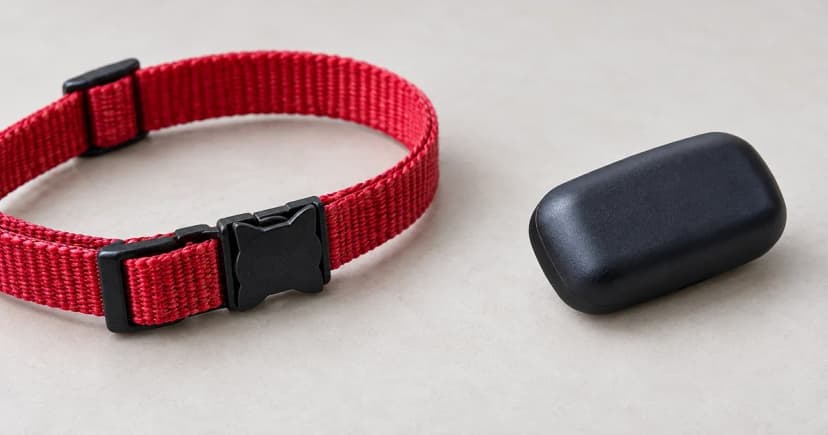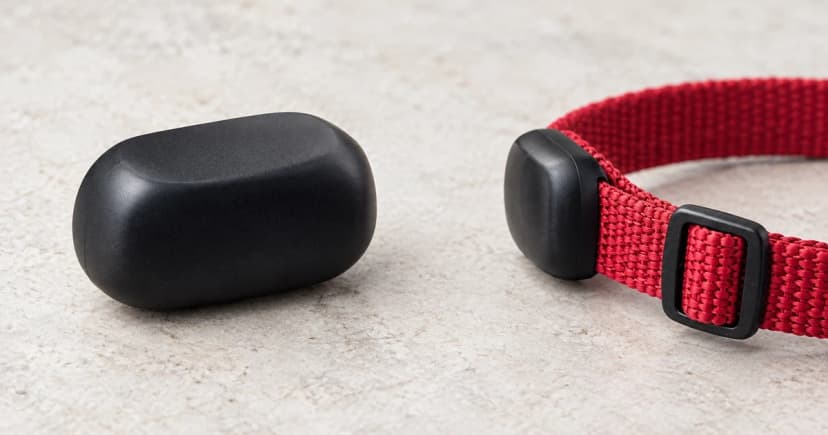
To work out how to activate a new pet GPS tracker, first establish whether its service is already active, which account belongs to the purchase and which device you are registering. Then follow that maker's initial-activation route. Seeing the intended tracker in the correct account is a useful setup checkpoint; it is separate from proving that the tracker can obtain and send a fresh location.
This guide covers a new tracker you legitimately own. Moving an existing active plan to a replacement is a different task: use the replacement subscription-transfer guide for that situation. A device that belongs to another person's account needs the maker's ownership process, not an improvised reset.
Prepare a private account and device record
Keep the purchase confirmation and exact model documentation nearby. Note whether the order included service, whether you already created an account, and which email address you used. Read the device identifier from the actual unit or matching documentation; a product name or pet nickname is not a substitute.
Keep full identifiers, passwords, payment details and unredacted account screens out of public notes. If the purchase and account information disagree, resolve that before choosing another paid plan. Do not treat an unfamiliar message as evidence that the hardware needs a factory reset.
Choose the route that matches the purchase
Tractive's activation guide separates these situations:
- Tracker and subscription bought together on tractive.com: the account is created during checkout and the tracker arrives activated. Complete the password setup sent to the purchase email, then sign in to that account.
- No subscription yet: create an account or sign in, select Add tracker, enter the eight-letter ID from the device's back, follow the plan-selection prompts and assign a pet.
Its password-setup email link lasts 24 hours; the guide points to official password recovery if it expires. An existing active plan or a voucher follows a separate documented route, rather than automatically requiring another purchase.
Weenect's registration guidance describes a first-tracker process through My Weenect or its Android/iOS app. Sign in, or create your account if needed. Registration then starts automatically and includes the tracker serial number and subscription selection.
The page's separate Add a tracker route is for an additional device in an existing account. Do not assume that control must appear for a first registration. This English-UK article is dated January 2024; use the current guidance for your equipment if the screens differ.
Check the intended device in the intended account
After following the applicable instructions, examine the device entry and service information the app actually provides. Compare them with your private record. If several entries exist, do not choose one solely because its picture or nickname looks familiar.
- Confirm that you are signed into your intended account.
- Check the listed device against the identifier information available in that service. Ask support how to confirm a match if the display does not make it clear.
- Record the service state or exact message shown, rather than writing only “setup done.”
- Keep an unresolved account or device mismatch open until the maker explains it.
These are observation checks, not a claim that every app exposes the same fields. An account entry does not demonstrate Bluetooth pairing, cellular coverage, a GPS fix or a current remote update. For those separate conditions, see how pet GPS trackers work.
Handle an already-active message in context
Tractive's already-active article describes its purchase being linked to one account while the owner later signs in with another email. In that scenario, use the correct owned account and official password recovery if needed. It does not release somebody else's tracker or establish the cause of every activation error.
Finish with a clear handoff to the next equipment check
Save the model, account used, purchase/service route, intended device and what the app displayed afterward. Record the time and exact wording of any unresolved message. Share only the information support requests through its official channel; do not publish credentials or complete device identifiers to explain a problem.
Once the account-and-device match is clear, follow the model's separate equipment instructions. Our tracker charging guide covers power and charging indications. Pawlivy's cellular GPS tracker category provides equipment context, without confirming a particular service plan, region, model or stock. Account setup, charging and location reporting remain distinct checks.